
Lightweight DDNS Updater with Docker and web UI
Lightweight container updating DNS A records periodically for GoDaddy, Namecheap and DuckDNS











| Image size | RAM usage | CPU usage |
|---|---|---|
| 8.65MB | 13MB | Very low |
Features
- Updates periodically A records for different DNS providers: Namecheap, GoDaddy, DuckDNS (ask for more)
- Web User interface
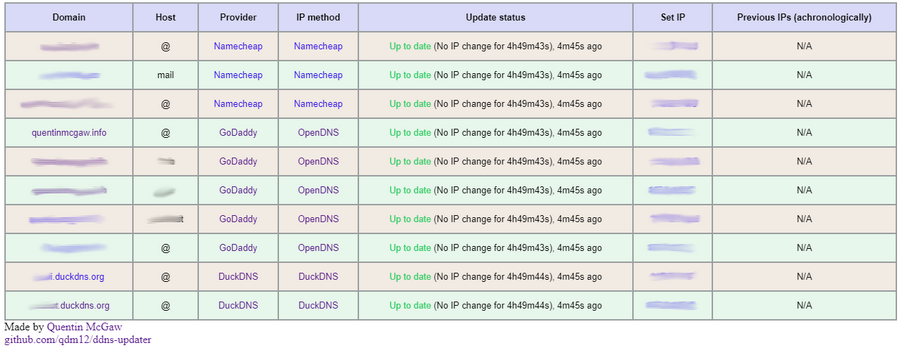
- Very lightweight based on Scratch with:
- Static Golang healthcheck binary (UPX-compressed)
- Static Golang updater binary
- Ca-Certificates
- Emojis 👍
Setup
To setup your domains initially, see the Domain set up section.
Use the following command:
docker run -d -p 80:80 -e RECORD1=example.com,@,namecheap,0e4512a9c45a4fe88313bcc2234bf547 qmcgaw/ddns-updater
or use docker-compose.yml with:
docker-compose up -d
Environment variables
| Environment variable | Default | Description |
|---|---|---|
DELAY |
300 |
Delay between updates in seconds |
ROOTURL |
/ |
URL path to append to all paths (i.e. /ddns for accessing https://example.com/ddns) |
LISTENINGPORT |
80 |
Internal TCP listening port for the web UI |
RECORDi |
A record to update in the form domain_name,host,provider,ip_method,password |
- The environement variables
RECORD1,RECORD2, etc. are domains to update the IP address for- The program reads them, starting at
RECORD1and will stop as soon asRECORDnis not set - Each must respect the format
domain_name,host,provider,ip_method,password - The
ip_methodparameter can be:providerfinds your public IP using your DNS provider (Namecheap or DuckDNS only)duckduckgofinds your public IP using https://duckduckgo.com/?q=ipopendnsfinds your public IP using https://diagnostic.opendns.com/myip154.251.67.58sets your public IP as fixed
- The program reads them, starting at
- The port mapping
8000:80is for the web interface- http://localhost:8000 is the main UI list
- http://localhost:8000/update is to force the update of your domains
Host firewall
This container needs the following ports:
- TCP 443 outbound
- UDP 53 outbound
- TCP 80 inbound (or other) for the WebUI
Domain set up
Namecheap

- Create a Namecheap account and buy a domain name - example.com as an example
- Login to Namecheap at https://www.namecheap.com/myaccount/login.aspx
For each domain name you want to add, replace example.com in the following link with your domain name and go to https://ap.www.namecheap.com/Domains/DomainControlPanel/example.com/advancedns
-
For each host you want to add (if you don't know, create one record with the host set to
*):-
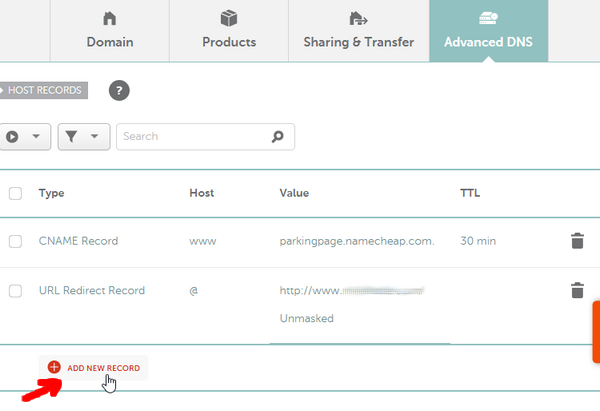
In the HOST RECORDS section, click on ADD NEW RECORD
-
Select the following settings and create the A + Dynamic DNS Record:

-
-
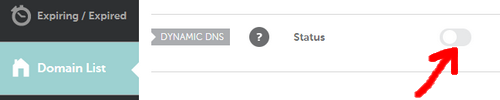
Scroll down and turn on the switch for DYNAMIC DNS
-
The Dynamic DNS Password will appear, which is
0e4512a9c45a4fe88313bcc2234bf547in this example.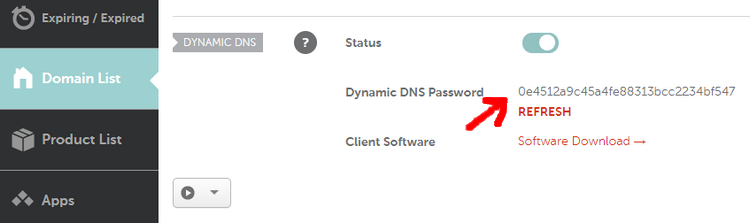
GoDaddy

- Login to https://developer.godaddy.com/keys with your account credentials.

- Generate a Test key and secret.

- Generate a Production key and secret.

Obtain the key and secret of that production key.
In this example, the key is dLP4WKz5PdkS_GuUDNigHcLQFpw4CWNwAQ5 and the secret is GuUFdVFj8nJ1M79RtdwmkZ.
DuckDNS

Testing
- The automated healthcheck verifies all your records are up to date using DNS lookups
- You can check manually at:
-
GoDaddy: https://dcc.godaddy.com/manage/yourdomain.com/dns (replace yourdomain.com)

You might want to try to change the IP address to another one to see if the update actually occurs.
-
Namecheap:
-
DuckDNS:
-
TODOs
- Add favicon.ico
- Finish readme
- Unit tests
- Live update of website
- Other types or records
- Better HTML webpage with possibility to change settings